
Email filtering is an efficient way to manage the incoming and outgoing messages of any given account on your domain.
About e-mail filters
You can use e-mail filters to block unwanted messages based upon a certain set of conditions. For example, you can specify that messages containing a certain word or phrase are deleted automatically or routed to another e-mail address. The e-mail filters that you create are cumulative: if a message passes through one filter, it can still be blocked by a subsequent filter.
There are two types of e-mail filters that you can create:
- E-mail filters: You can configure filters for specific e-mail accounts.
- Global e-mail filters: You can configure filters that apply to all e-mail accounts for a domain.
How to set up e-mail filters in cPanel
- Log in to your cPanel.
- Scroll down to the Email section.
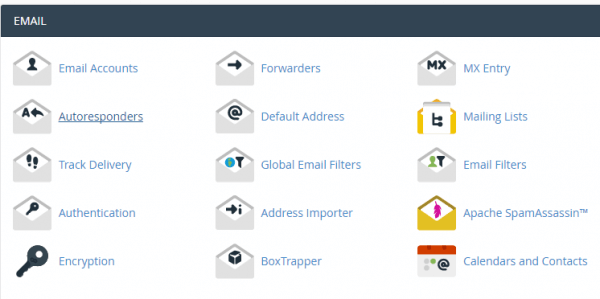
- Click the E-mail Filters icon.
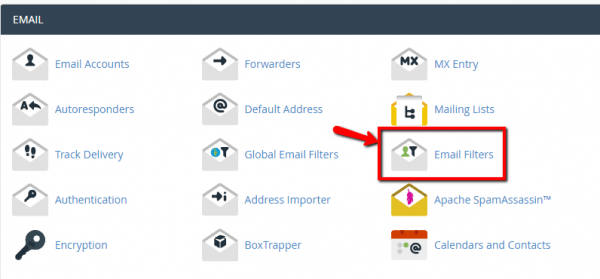
- The Email Filters screen appears.
- In the Filters by Users section, find the email address you want to filter and click the Manage Filters link.
- In the Filters by Users section, find the email address you want to filter and click the Manage Filters
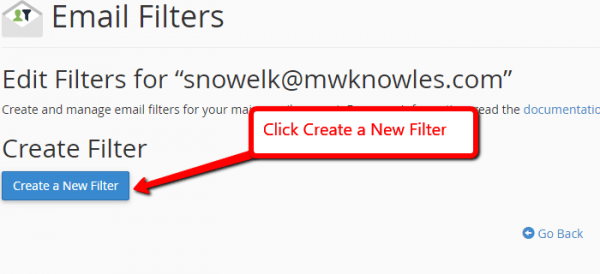
- The Edit Filters for email address screen appears. Click Create a New Filter.
- The Create a New Filter screen appears.
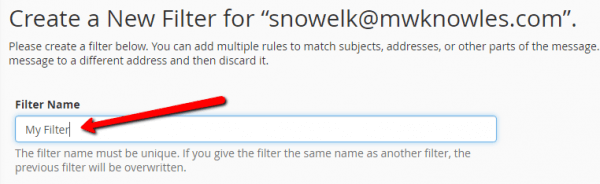
- Type a unique name for your filter in the Filter Name field.
- Set up the rules you wish to use to filter emails in the Rules field. Each rule has criteria and an operator describing how to compare them to a message.
The following criteria are available:
- From — The message sender’s address.
- Subject — The message’s subject line.
- To — The address to which the sender sent the message.
- Reply Address — The address at which the sender receives replies.
- Body — The message’s content.
- Any Header — Any part of the message’s header.
- Any recipient — Any recipient of the message.
- Has not been previously delivered — The system only examines messages that remain in the queue for delivery.
- Is an Error Message — The system only examines error messages that an auto-response system sends.
- List ID — The account’s mailing lists.
- Spam Status — Whether Apache SpamAssassin™ marked the message as spam. The Spam Status line begins with Yes or No.
- Spam Bar — The content of the Spam Bar header that Apache SpamAssassin generated for this message. The more plus signs (+) that Apache SpamAssassin assigns to a message, the greater the likelihood that the system marks the message as spam.
- Spam Score — The total number of plus signs (+) in the Spam Bar value, expressed as an integer.
The following comparison operators are available:
- equals — The message exactly matches a defined string.
- matches regex — The message matches a regular expression that you define.
- contains — The message contains a string that you define.
- does not contain — The message does not contain the defined string.
- begins with — The message begins with the defined string.
- ends with — The message ends with the defined string.
- does not begin — The message does not begin with the defined string.
- does not end with — The message does not end with the defined string.
does not match — The message does not exactly match the defined string
Type the word or phrase you wish to filter on below the operator and criteria fields.
- Select the Action you wish to happen when an incoming email matches your new rule.
Select the Action you wish to happen when an incoming email matches your new rule.
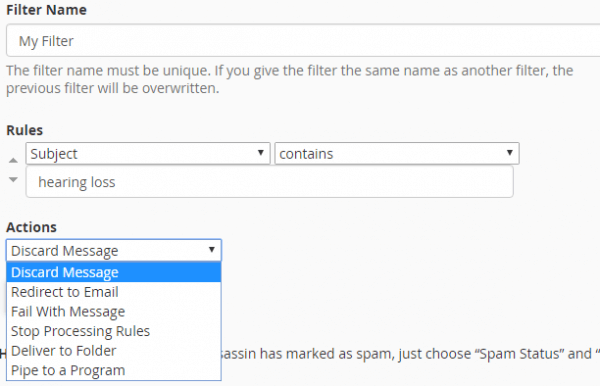
The following actions are available:
- Discard Message: Discard the message with no failure notice to the sender.
- Redirect to Email: Forward message to a specific email address.
- Fail With Message: Discard the message and send a failure notice to the sender.
- Stop Processing rules: Proceed and ignore all other filter rules. (Useful when you have more than one filter set up.)
- Deliver to Folder: Deliver the message to a specific email folder.
- Pipe to a Program: Send the message to a specific program for further processing.
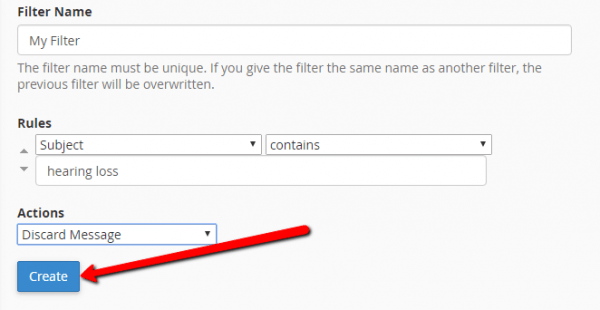
- Click Create
- Your new email filter is created. All new incoming emails for the email address you specified will be filtered according to this new rule.