In this article, you will learn how to manage and change file permissions in cPanel using the cPanel File Manager.
When files and directories are created in cPanel’s File Manager, the default permission are assigned. The default permissions for directories and files in cPanel are 755 and 644, respectively. Most users would never need to change the permissions, but at times when an update/installation fails or due to corrupted files/folders, the files and directories in cPanel can have the incorrect permissions. In this document we will discuss how to fix incorrect permissions.
Default Permissions
public_html - 750
Folders - 755
CGI and Perl scripts - 755
.html .php and other Document Types - 644
Files with lesser permissions than that of the default permission will encounter issues such as request denied, forbidden, etc. when requested by the server. If the permission is higher than that of default permission set, it can allow unauthorized users to access and compromise your site. The contents in your site should always be set to the default permissions.
Incorrect File Permissions?
Incorrect file permissions can cause errors or, even worse, allow unauthorized users to hack your site. Once an unauthorized user gains access, they can further alter more of your file permissions to make a site even more vulnerable. Remember that 777 permissions mean that your file is readable, writable, and executable by anyone who can access it. On a file live and online, that means nearly anyone in the world with web access!
777 permissions are not common. It is a rare situation where a file needs to be written and executed by anyone in the world. If you find files or folders with permissions that do not match the default permissions, it’s usually best to change them to cPanel’s recommended permissions.
How we can change the permission via cPanel File Manager.
1. Login to cPanel and click on File Manager .
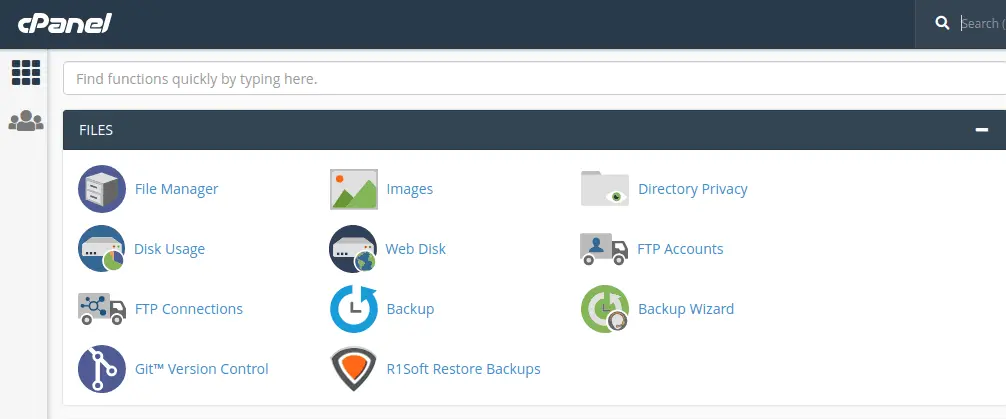
cPanel Main Page
2. Once inside the File Manager, select the file/directory and then click on Permissions to change the current permission. You can also right-click the file/directory and click Change Permissions to edit the permission.
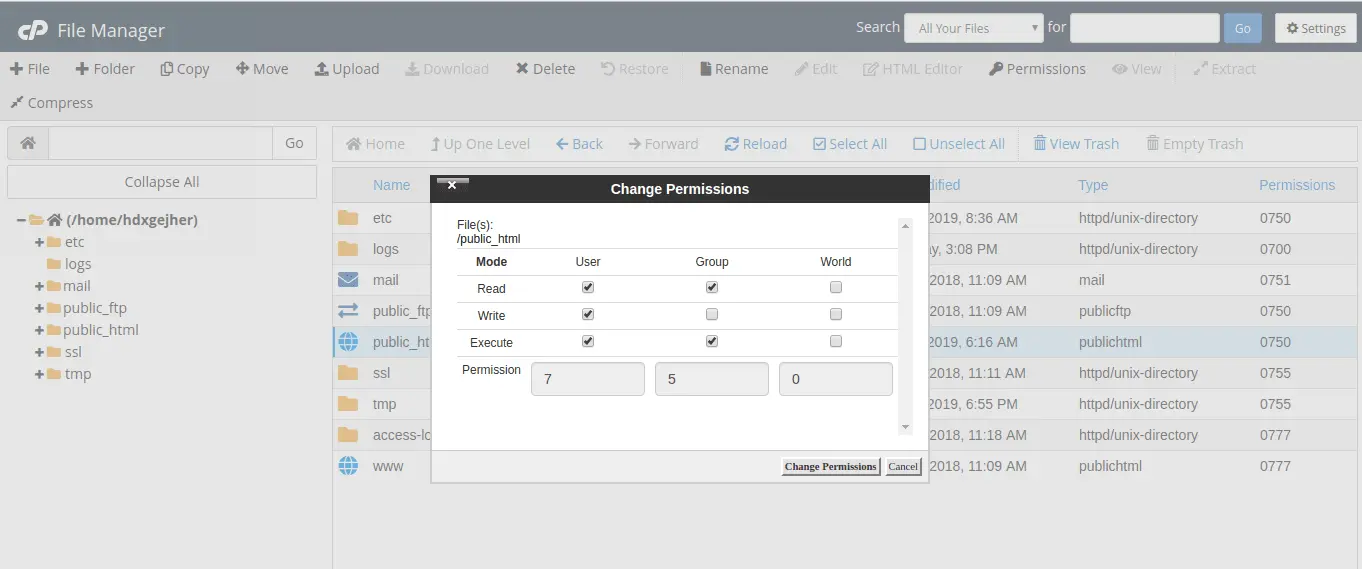
File Manager change Permissions
Next, you’ll get a popup window on which you can adjust the permissions by checking the box for each permission you want. The window will also display the corresponding numeric value for the permission you’ve set.
3. Click on Change Permission to confirm the changes.